Documentation
Everything you need to install, use, and get the most out of Nexus Negotiator 2.0 — your real-time AI negotiation coach for Gmail.
🚀Getting Started
Nexus Negotiator is a Chrome Manifest V3 extension that works directly inside Gmail's side panel. Setup takes under 60 seconds — no API keys or complex configuration required.
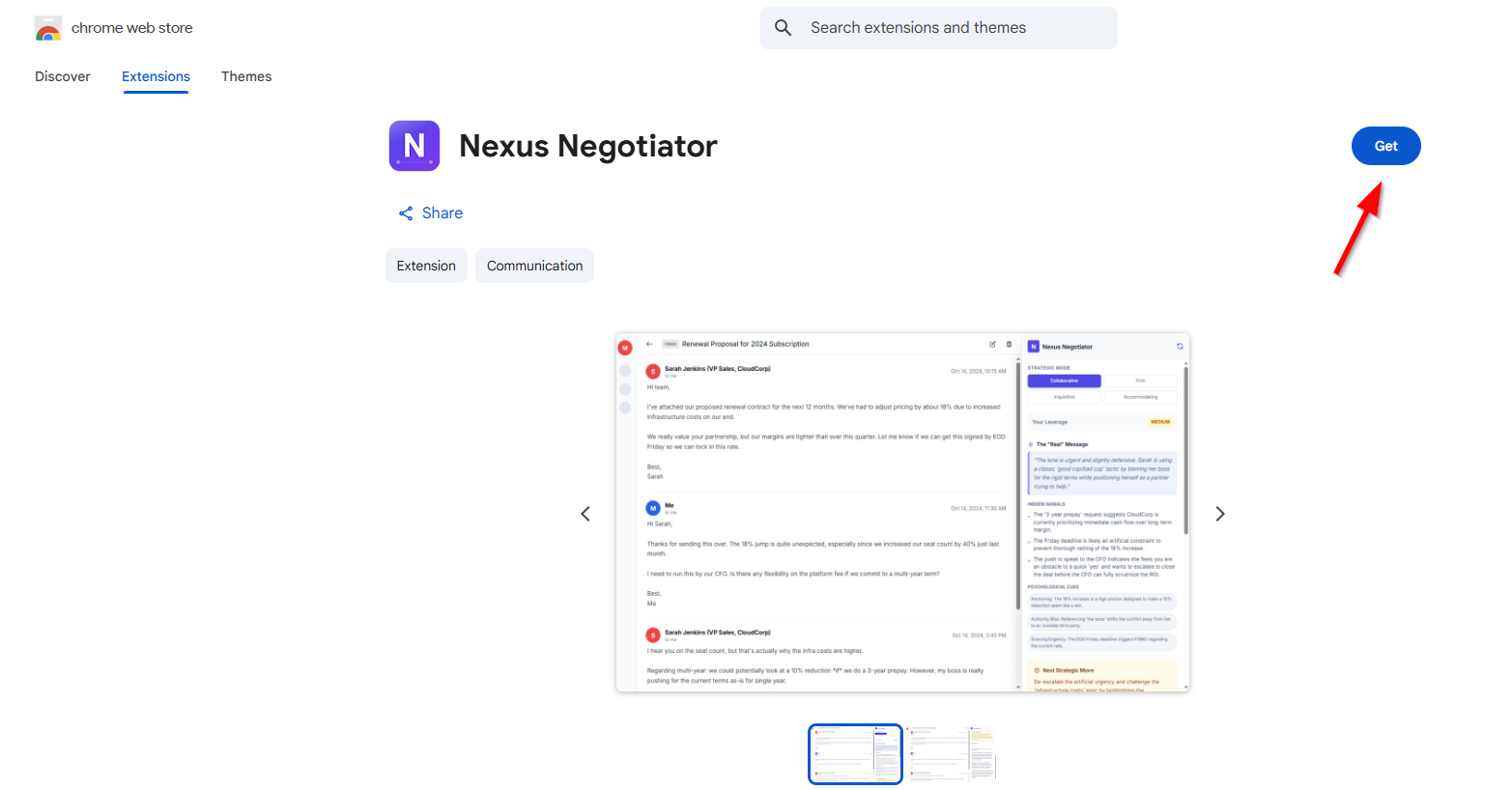
Install the Extension
Sign In with Google
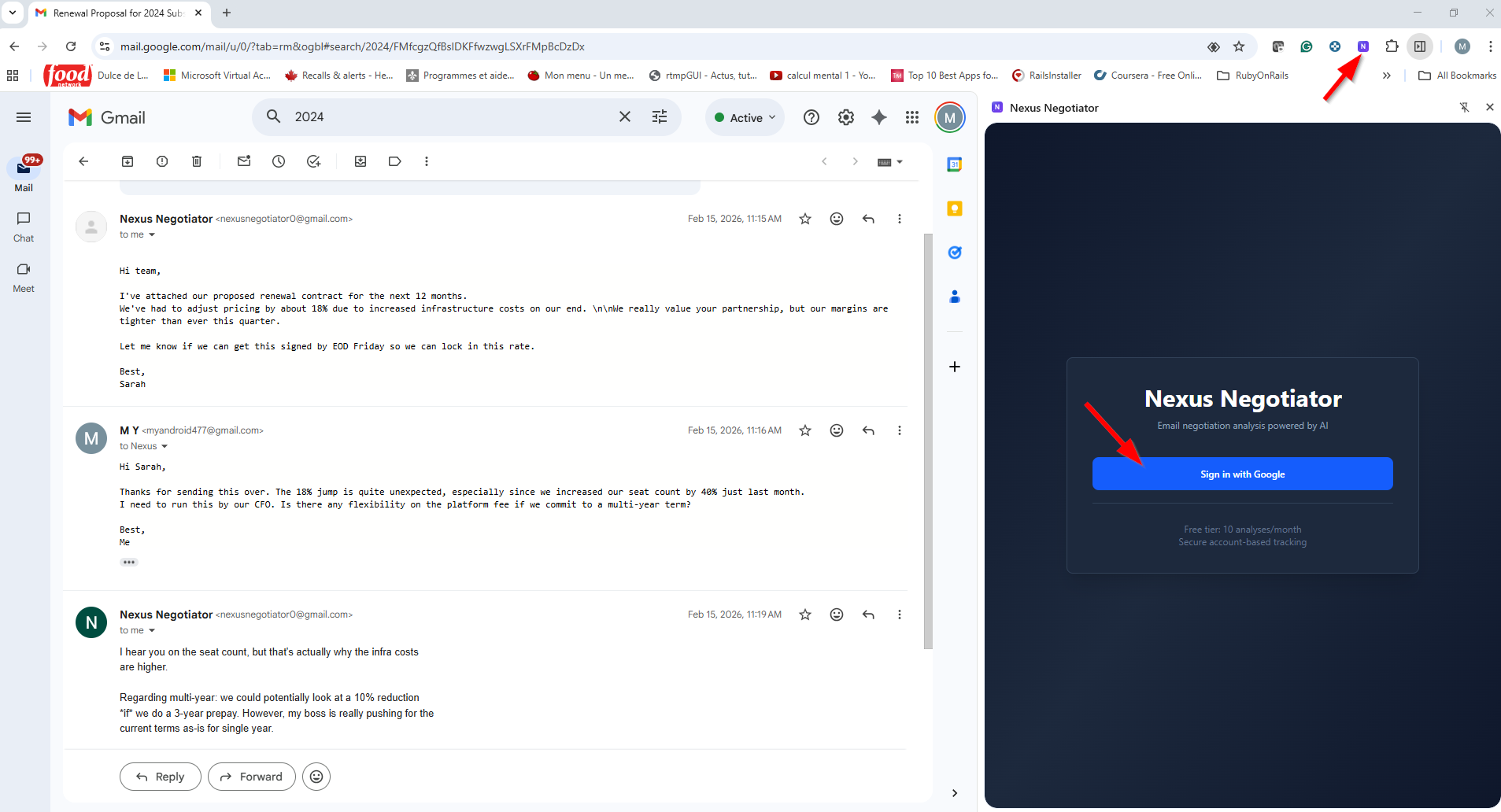
Open the Side Panel
Nexus Negotiator runs alongside your inbox using Chrome's native Side Panel so it never blocks your email compose window:
- Click the Nexus Negotiator icon in your Chrome toolbar while viewing Gmail (`mail.google.com`).
- If you just installed the extension while Gmail was already open, refresh your Gmail tab once so the thread detector connects.
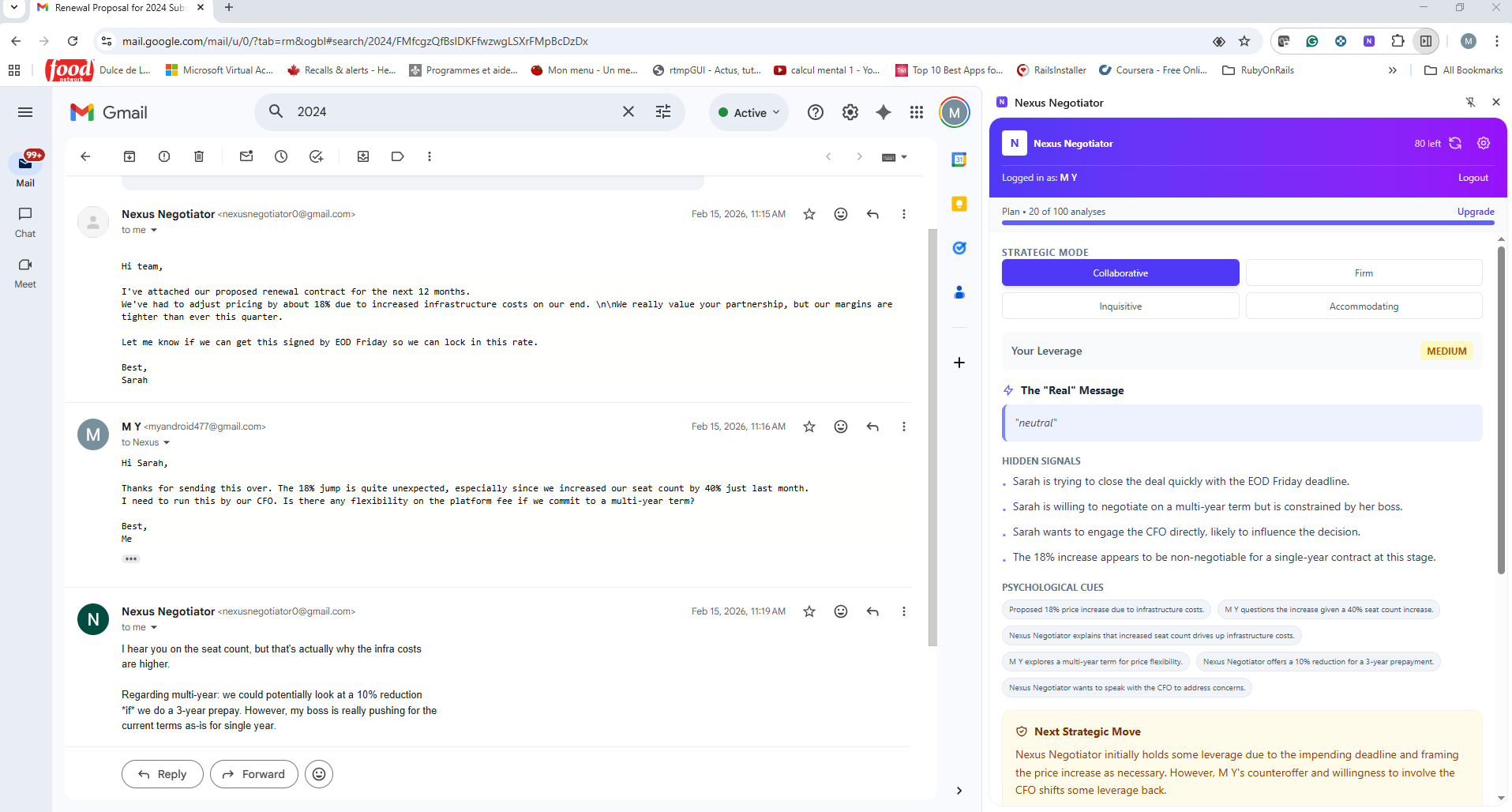
🧠How to Use
Run Your First Analysis
Open any email thread in Gmail — a salary or job offer negotiation, client proposal, vendor renewal, or scope discussion.
Reading the Results
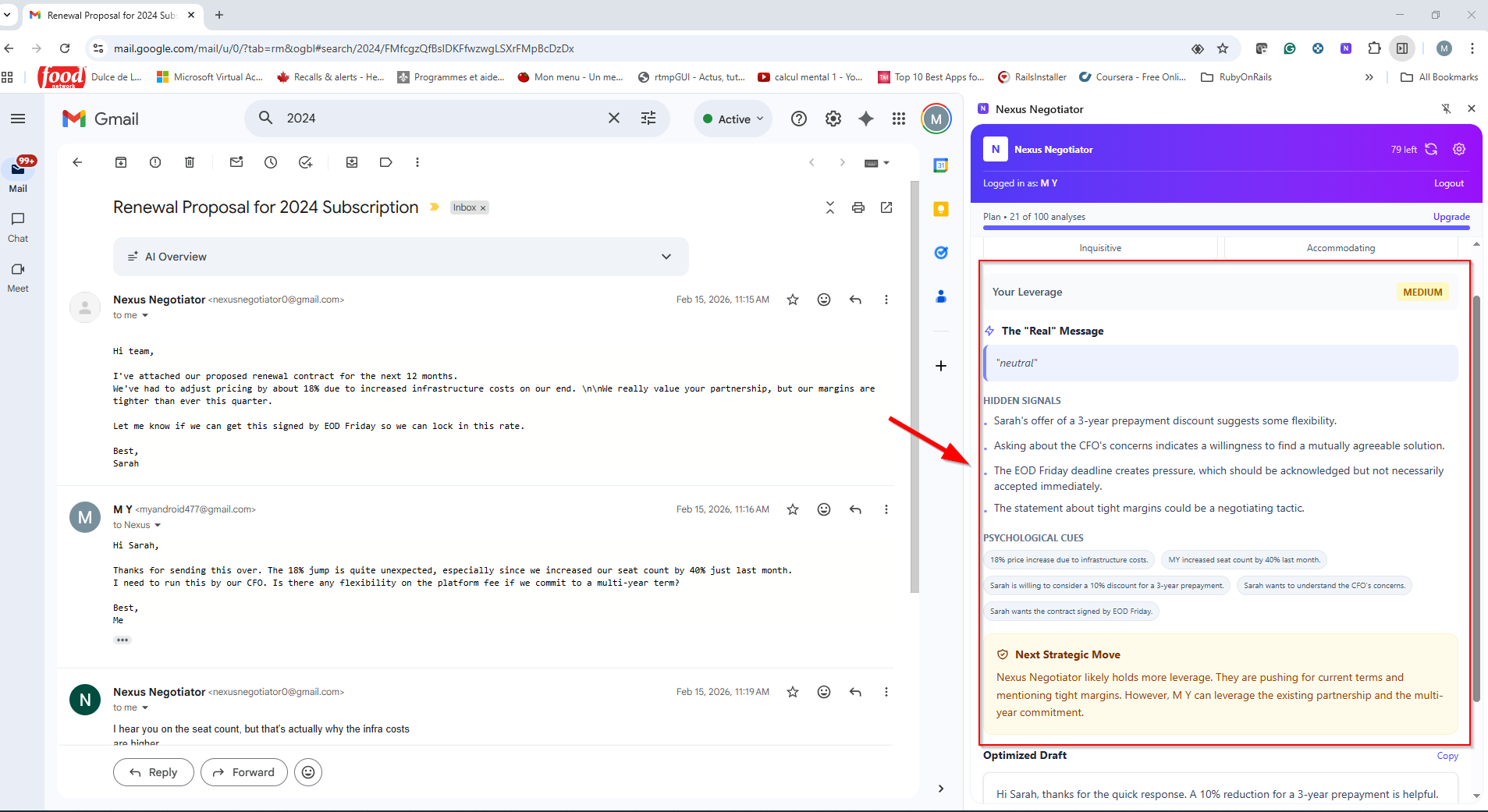
Each analysis breaks the conversation down into actionable intelligence:
Your Leverage (Deal Pass & Pro)
Rates your current bargaining position as High, Medium, or Low based on urgency signals, alternatives, and risk factors in the thread.
The "Real" Message
Decodes the underlying tone and sentiment (Positive, Neutral, or Negative) so you know what the sender is truly signaling beneath polite phrasing.
Hidden Signals
Bullet-point tactical insights highlighting subtext — urgency cues, hedging language, budget anchors, or concession patterns.
Psychological Cues (Deal Pass & Pro)
Tags key negotiation dynamics and sticking points from the email so you never miss a subtle anchor or deadline pressure tactic.
Next Strategic Move
A clear, plain-language recommendation explaining who holds power in the exchange and the exact tactical move you should make next.
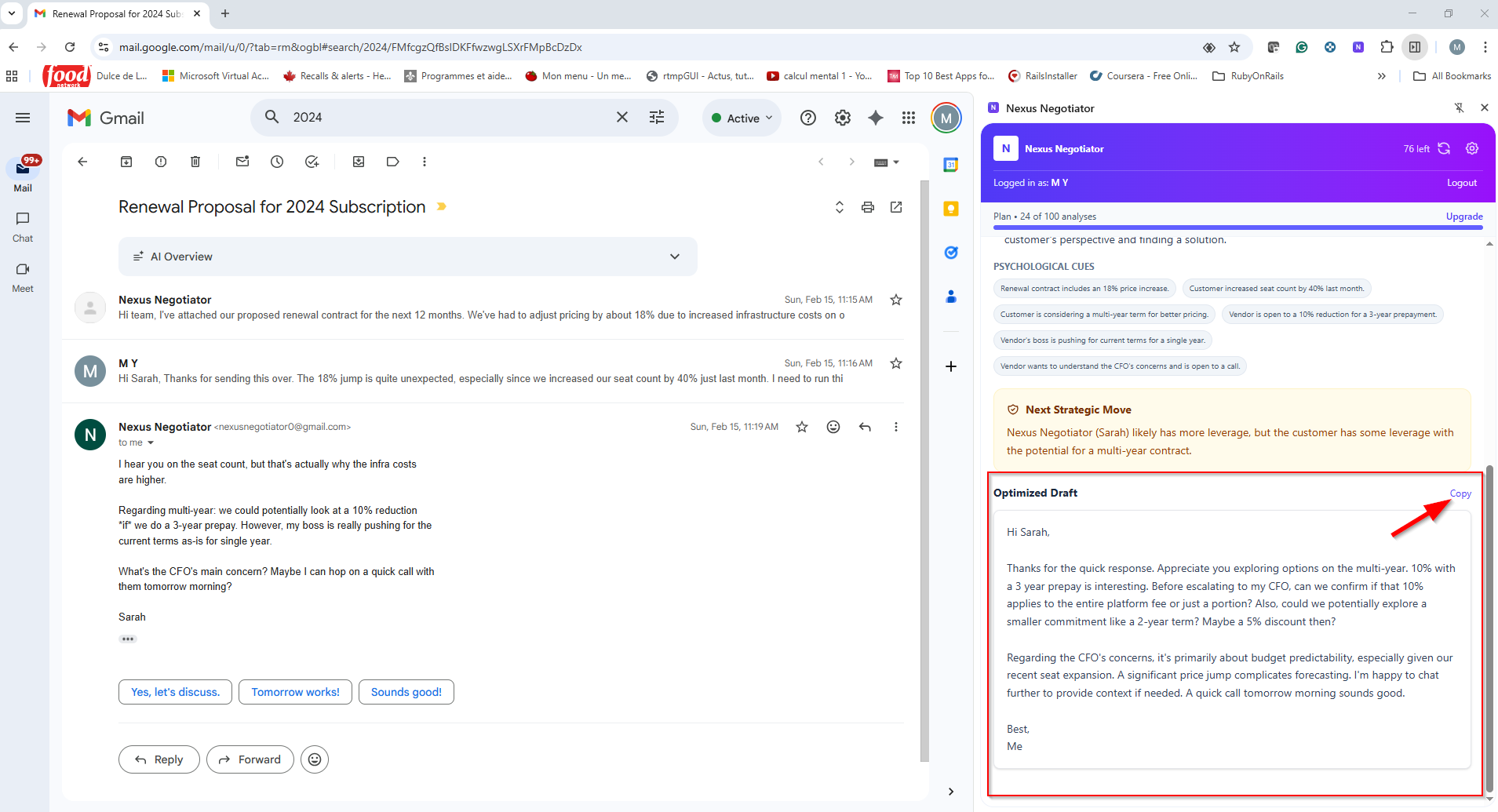
Optimized Draft
A complete, ready-to-send reply tailored to your chosen Strategic Mode and written in the same language as the email thread.
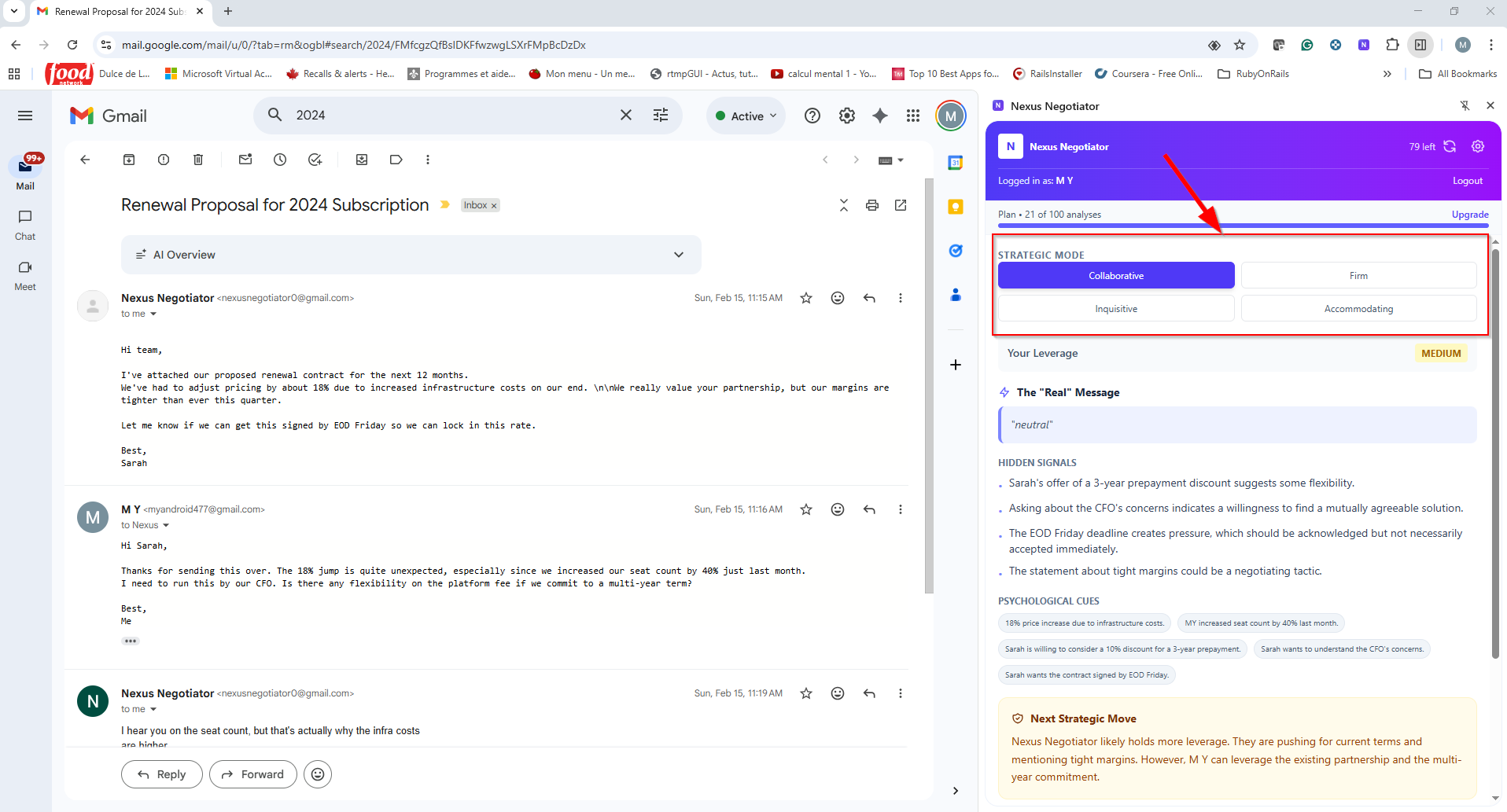
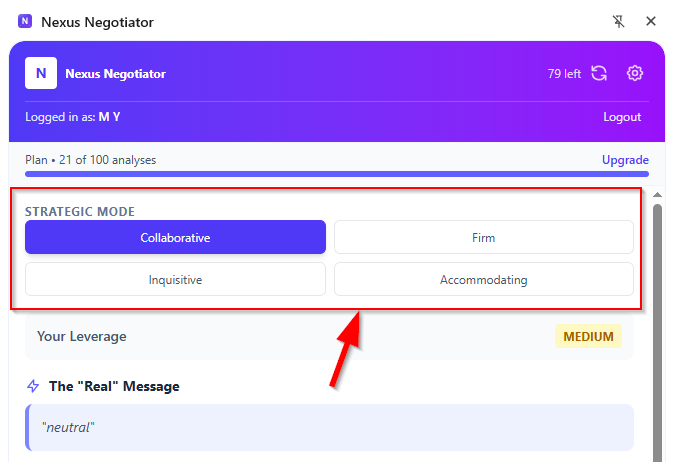
Negotiation Modes
Choose a Strategic Mode to control the tone and posture of your AI-generated reply. The Collaborative mode is available on all plans, while Firm, Inquisitive, and Accommodating modes are unlocked on the 30-Day Deal Pass and Pro plans.
Win-win framing for long-term relationships. Focuses on mutual benefit, shared problem-solving, and preserving goodwill.
Best for: Partner negotiations, client relationships, team agreements
Holds your ground confidently without sounding hostile. Signals strong boundaries and protects your pricing or terms.
Best for: Salary counter-offers, vendor pushback, scope creep, fee defense
Draws out the other party's real constraints before you commit. Uses calibrated questions to uncover hidden flexibility.
Best for: Early-stage deals, vague objections, uncovering budget ceilings
Strategically builds trust and de-escalates tension when preserving the relationship is more valuable than a short-term win.
Best for: Key accounts, sensitive escalations, relationship recovery
Copy the Optimized Draft
⚡Plans & Upgrading
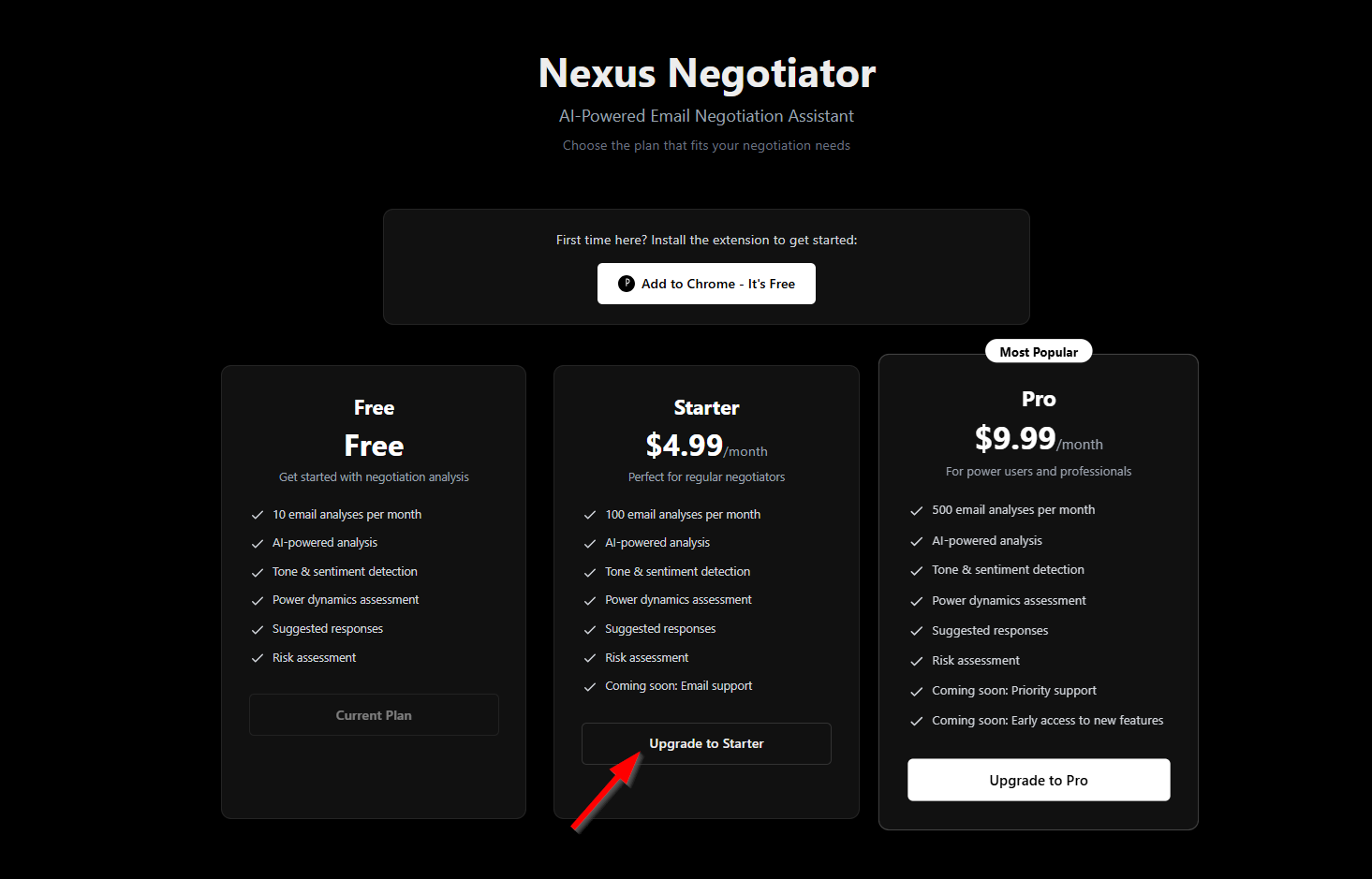
Plans Overview
Whether you're navigating a single job offer or closing deals every week, Nexus Negotiator offers flexible options — including a one-time 30-Day Deal Pass with no recurring subscription and a full Pro plan with monthly or discounted annual billing.
| Plan | Price | Analysis Quota | Strategic Modes & Cues | Best For |
|---|---|---|---|---|
| Free | $0 | 10 / month | Collaborative mode, Tone & Hidden Signals | Trying out Nexus Negotiator |
| 30-Day Deal Pass | $29 one-time | 150 for 30 days | All 4 Modes + Full Leverage & Psychological Cues | Salary talks, job offers & contract renewals |
| ProMost Popular | $15/mo (annual) or $19/mo | 500 / month | All 4 Modes + Full Leverage, Cues & Priority AI | Sales reps, founders, freelancers & dealmakers |
How to Upgrade
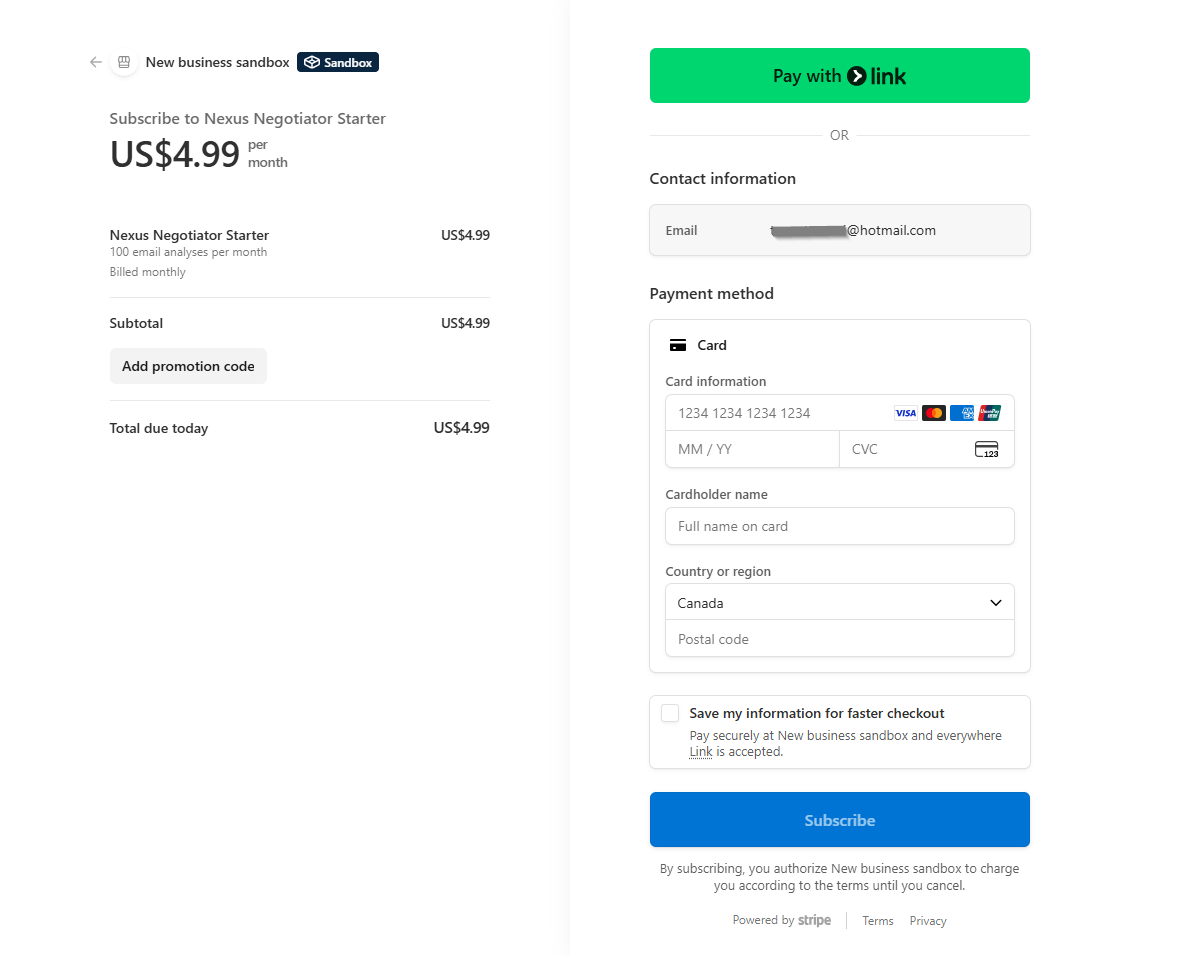
Manage Subscription
You can check your plan status, retrieve your backup license key, update payment methods, or cancel a recurring subscription at any time. For your security, license keys and billing links are never displayed on a public webpage — they are sent exclusively to the verified email owner:
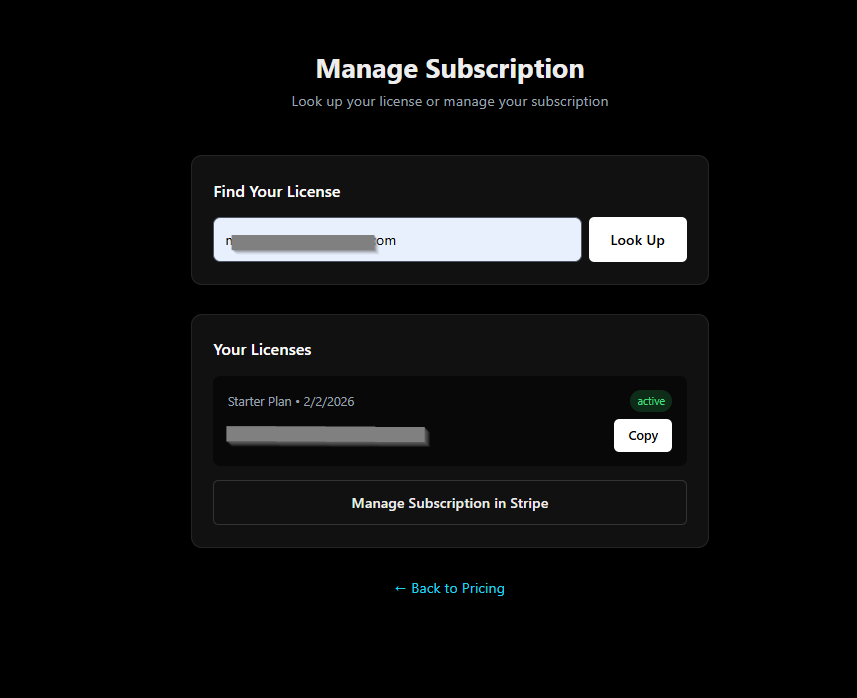
🔑License & Activation
Zero-Touch Activation
In Nexus Negotiator 2.0, subscriptions and Deal Passes are linked directly to your authenticated Google email address. When you complete checkout with that email, the extension automatically discovers and activates your license in the background — no manual copy-pasting required.
Finding Your License
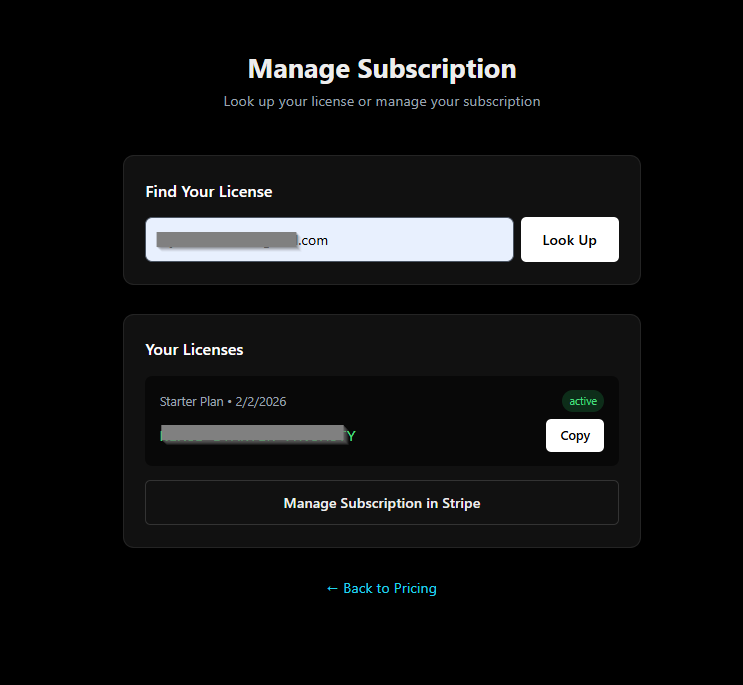
We also generate a backup license key for your records upon checkout:
- Checkout Success Page & Confirmation Email — displayed immediately after Stripe checkout and emailed to your checkout address.
- Secure Email Lookup — visit nexusnegotiator.com/manage, enter your email address, and click "Email My License" to have your license key and subscription details securely delivered to your inbox.
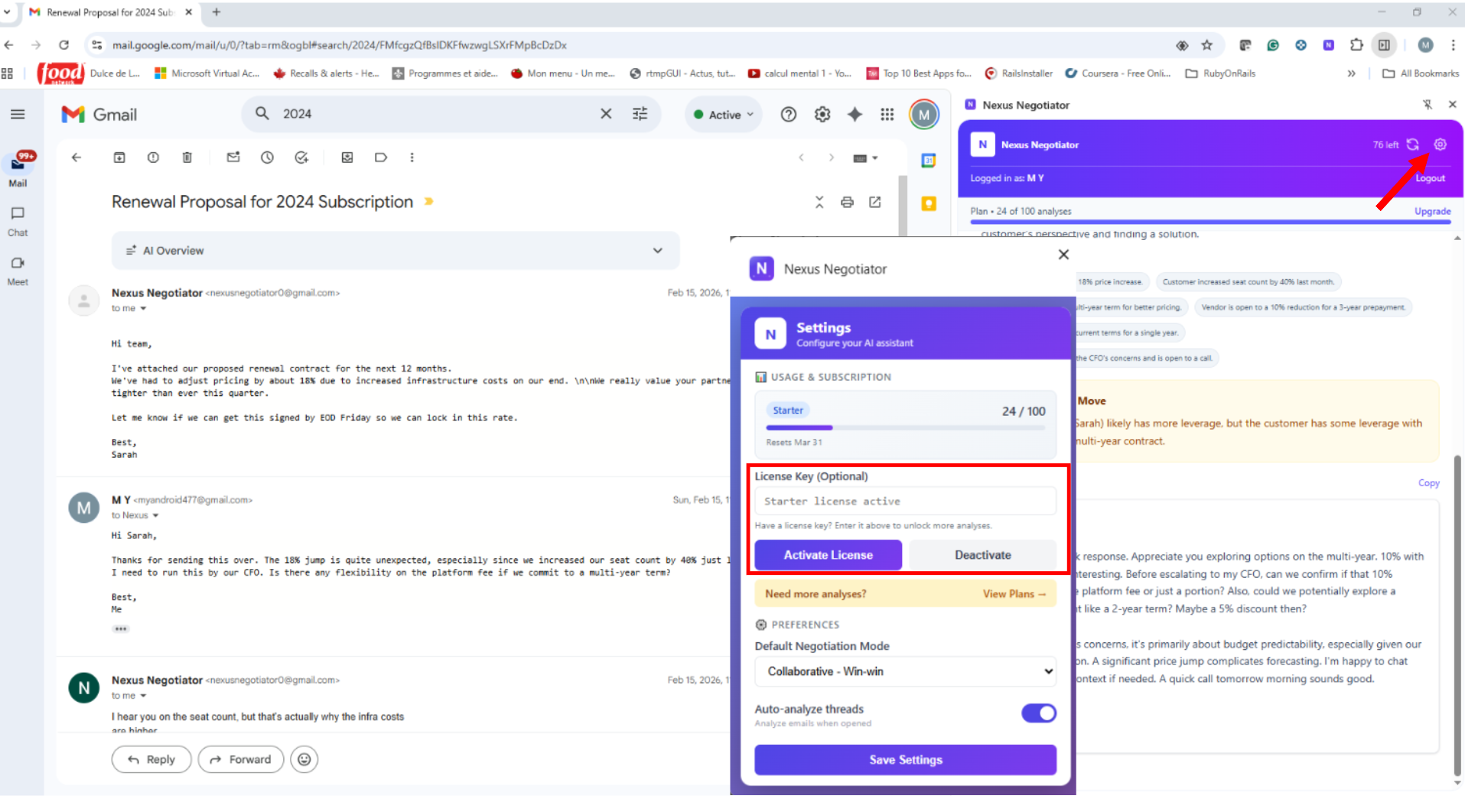
Manual Key Activation
If you ever need to enter a backup or promotional license key manually:
Use on Another Device
Because your plan is tied to your Google account, moving to a new computer is effortless:
💬Frequently Asked Questions
Is my email data stored on your servers?
No. Email thread content is extracted locally in your browser from the active Gmail tab and sent over encrypted HTTPS strictly for real-time AI analysis. We never permanently store or sell your email contents, and we never request background OAuth access to read your Gmail inbox.
What languages does Nexus Negotiator support?
The extension interface is localized in English, Spanish (Español), French (Français), German (Deutsch), and Portuguese (Português). Furthermore, the AI automatically detects the language of your email thread and generates its analysis and Optimized Draft reply in that exact same language.
Does Nexus Negotiator work outside of Gmail?
Currently, Nexus Negotiator is built specifically for Gmail (mail.google.com) in Google Chrome. Support for additional email clients is on our product roadmap.
When does my analysis usage counter reset?
For Free accounts, the 10-analysis counter resets on the 1st of each calendar month. For Pro subscribers, your 500-analysis quota resets on your monthly Stripe billing renewal date. For 30-Day Deal Pass holders, your 150 analyses are valid for 30 days from purchase. You can click the Refresh (↻) icon in the side panel header at any time to sync your latest usage.
Can I get a refund?
Yes. We offer a 7-day money-back guarantee. Contact support@nexusnegotiator.com within 7 days of your purchase if you're not satisfied and we'll help you right away.
Do I need my own Google Gemini API key?
No. All plans (including the Free tier, 30-Day Deal Pass, and Pro) run on our managed AI infrastructure right out of the box — no API keys or setup required.
Still have questions?
Our support team is here to help and typically responds within 24 hours.